Borderlands 3 PC System Requirements And Graphics Options
 By Freja Olsson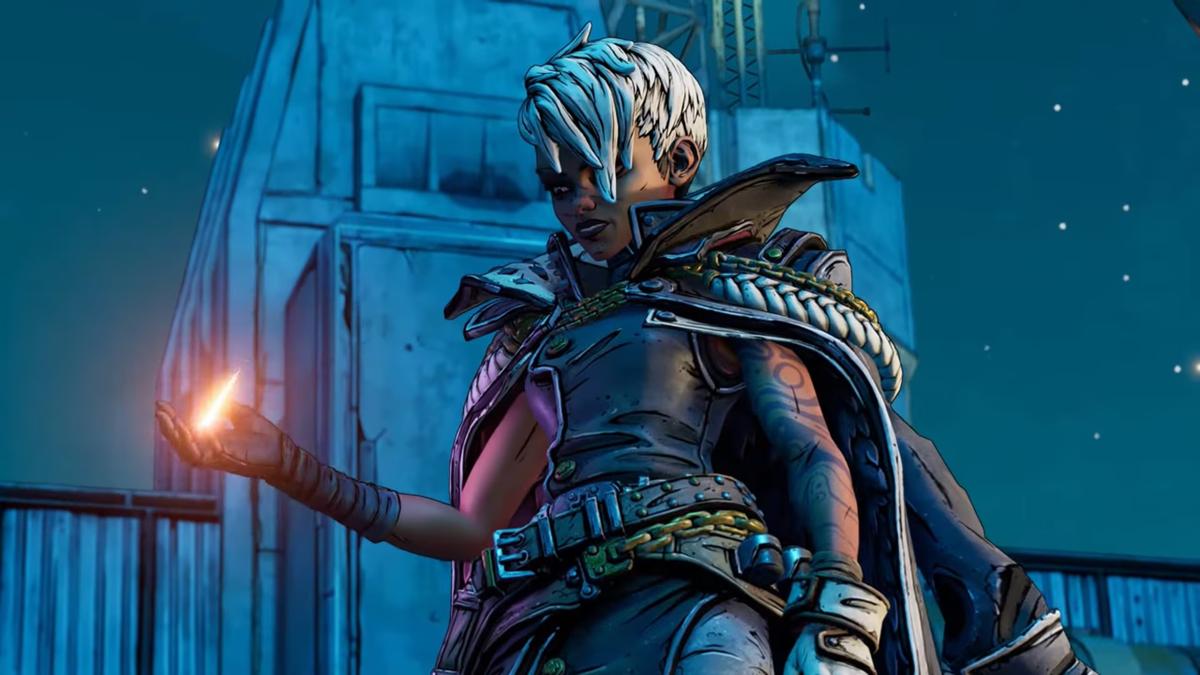
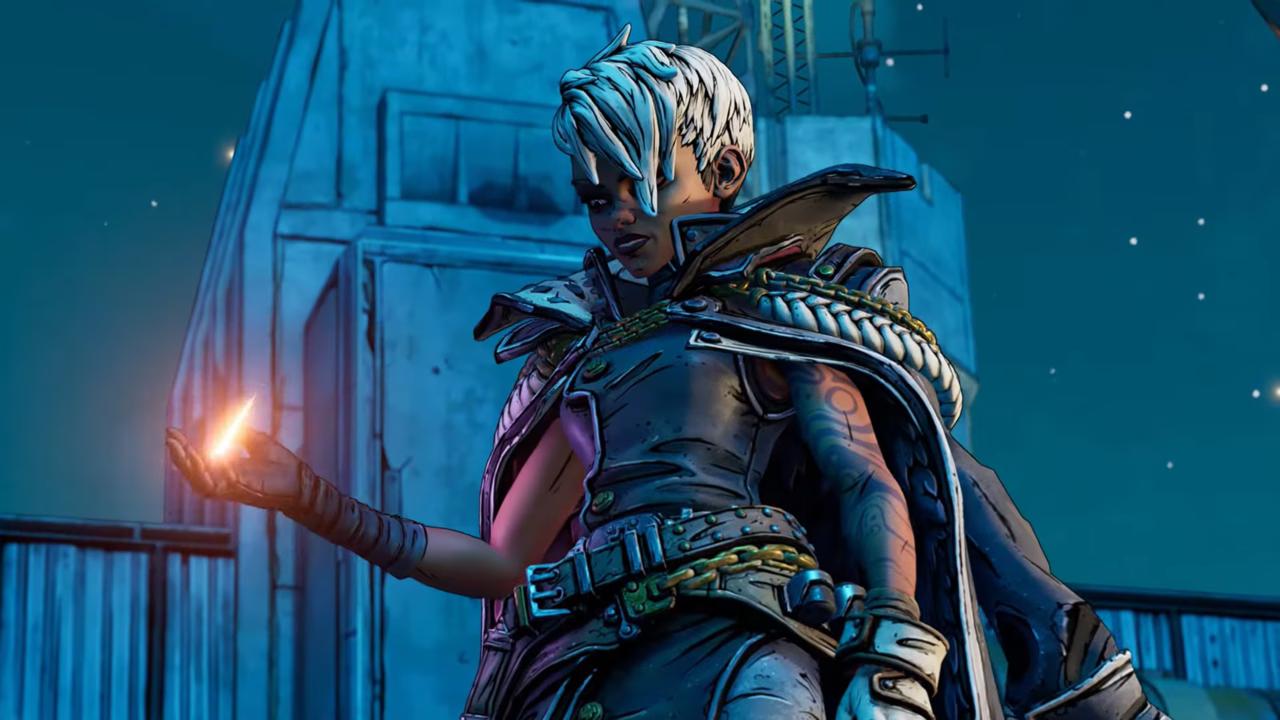
Borderlands 3 is the third major installment and hugely successful entry in the franchise. It’s also the most demanding entry the series has seen. Choose the recommended settings if your PC has hardware similar to or better. The best settings give a better experience with high-quality settings. High preset often delivers higher FPS than Ultra. Reduce Volumetric Fog, Shadows, and Screen Space Reflections first if performance is low. Let’s find out the PC system requirements and Graphics settings for Borderlands 3.
Borderlands 3 PC System Requirements
Below are all the minimum and recommended requirements for Borderlands 3.
Component | Minimum Requirements | Recommended Requirements |
Operating System | Windows 7 | Windows 8/10 |
Processor | AMD FX-8350 or Intel Core i5-3570 | AMD Ryzen 5 2600 or Intel Core i7-4770 |
Memory | 6 GB RAM | 16 GB RAM |
Graphics Card | AMD Radeon HD 7970 or NVIDIA GeForce GTX 680 (2 GB VRAM) | AMD Radeon RX 590 or NVIDIA GeForce GTX 1060 (6 GB VRAM) |
DirectX | Version 11 | Version 12 |
Storage | 75 GB available space | 75 GB available space |
Sound Card | DirectX-compatible | DirectX-compatible |
Architecture | 64-bit processor | 64-bit processor |
A quick Borderlands 3 price tracker on PriceRadar shows which verified store currently offers the lowest Steam key offer.
Borderlands 3 Basic Graphics Options
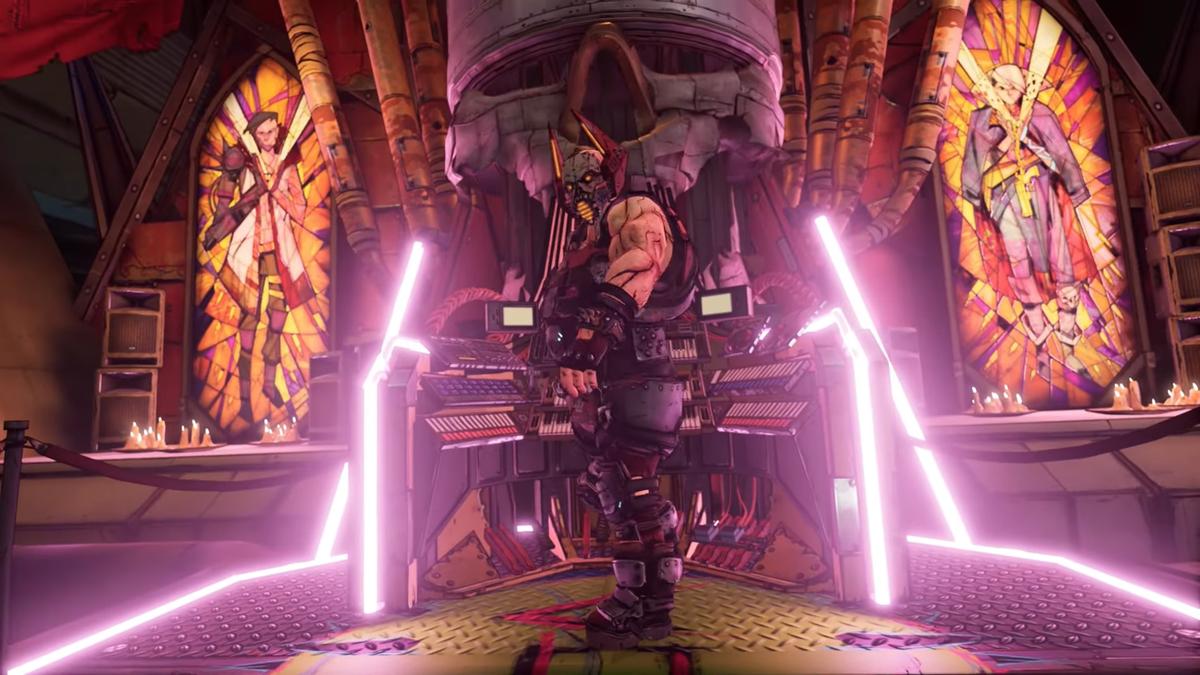
You also get multiple graphics settings on PC for Borderlands 3. This lets you modify the game for better performance and a smoother gameplay experience.
Graphic Option | Recommended Setting | Reason |
Graphics API | DirectX 11 | More stable and offers faster loading on most systems. DX12 may perform better on some modern PCs but can have longer load times. |
Display Mode | Fullscreen | Best performance. |
Resolution | Native monitor resolution | Delivers the sharpest image. |
Resolution Scale | 100% | Reduce the image quality |
Frame Rate Limit | Unlimited | Reduces unnecessary frame limiting. |
V-Sync | Off | Lowers input lag. |
Anti-Aliasing | Temporal | Offers the best image quality |
Fidelity FX Sharpening | On | Sharpens the image |
Motion Blur | Off | Cleaner visuals and improved responsiveness. |
Camera Motion Blur | Off | Improves clarity during movement. |
Object Motion Blur | Off | Better visibility in combat. |
Best Advanced Graphics Options
These settings provide the biggest FPS gains with less reduction in visual quality. Use these advanced settings to improve the frame rates.
Option | Recommended |
Texture Streaming | Ultra |
Anisotropic Filtering | 16x |
Material Quality | High |
Shadows | Medium |
Draw Distance | High |
Environment Texture Detail | Ultra |
Environment Detail | High |
Terrain Detail | High |
Foliage Detail | Medium |
Character Texture Detail | Ultra |
Character Detail | High |
Ambient Occlusion | Medium |
Volumetric Fog | Medium or Off |
Screen Space Reflections | Medium |
Borderlands 3 includes the following four built-in quality presets.
- Low: Older or entry-level PCs; maximum FPS
- Medium: Balanced visuals and performance
- High: Modern mid-range gaming PCs
- Ultra: High-end GPUs with maximum image quality
Fix Lag and Boost FPS for Borderlands 3
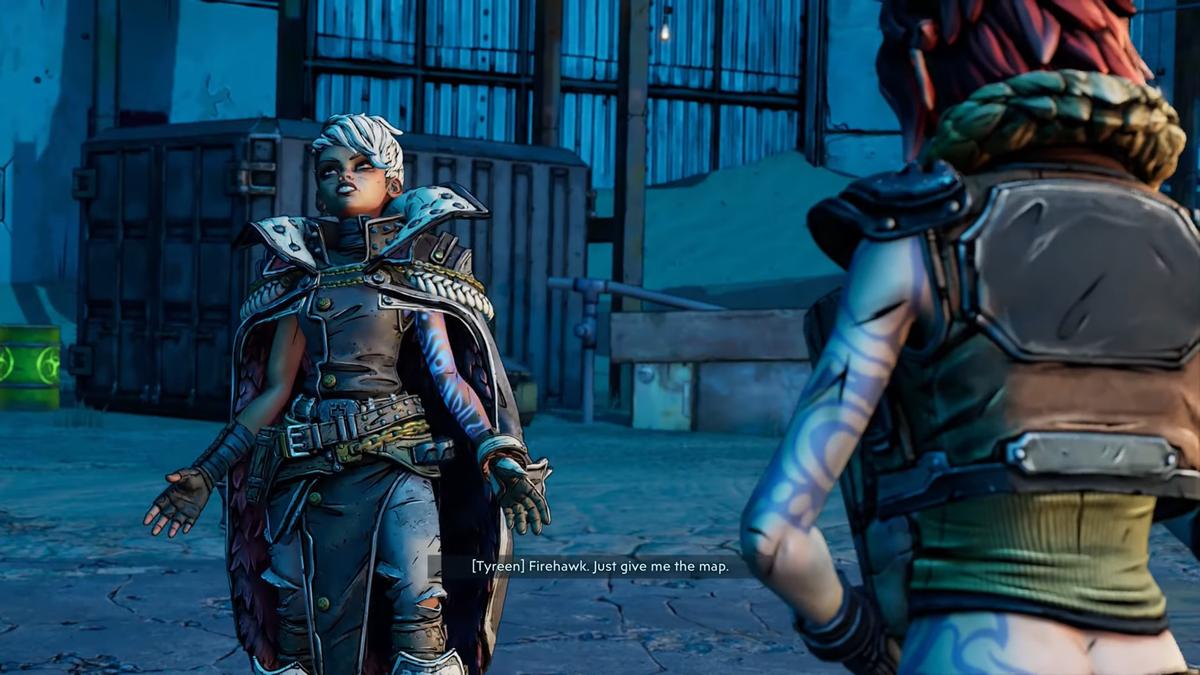
You may sometimes feel that your game is lagging and the FPS is very low. These mostly occur when you’re using the wrong graphics settings. DirectX 11 & DirectX 12 are the performers, so you must check both of them and find out which one suits your system.
Below are some settings that have the biggest impact on performance.
Graphics Setting | Recommended |
Volumetric Fog | Medium or Off |
Screen Space Reflections | Medium |
Shadows | Medium |
Foliage Detail | Medium or Low |
Draw Distance | High |
Ambient Occlusion | Medium |
Volumetric Fog is the single biggest FPS hog, so turning it down or off can improve frame rates by around 20-24% on many systems. Turn off Camera Motion Blur and Object Motion Blur.
- Increase FPS to your monitor's refresh rate rather than letting FPS fluctuate.
- If you're facing issues with performance, make sure to reduce FOV.
- Running memory at its rated speed can improve CPU performance. The best part is that it may also reduce stutter in heavy games.
- Ensure you close browsers and stop background downloads before launching the game.
Below are the best tips for maintaining FPS and fixing lag.
- Turn Volumetric Fog to Off or Medium.
- Reduce Screen Space Reflections to Medium.
- Switch between DX11 and DX12 to find the better one.
- Install the game on an SSD.
- Cap FPS to a stable value and update GPU drivers.
Tips For Choosing PC System Requirements and Graphics Options
- Aim for the Recommended Specs Instead of the Minimum.
- Keep Graphics Drivers Updated for better FPS, stability, and DX12 performance.
- Lower the most demanding Graphics Settings first.
- Keep Texture Quality High if you have enough VRAM.
- Make sure to turn off Motion Blur for better clarity.
Conclusion
Borderlands 3 is an action shooter game that lets you dive into a world filled with numerous threats, multiple weapons, and missions. Use the recommended processor for smoother gameplay and the minimum processor to just enjoy the game. A more modern GPU provides a smoother experience in Borderlands 3. The best graphic settings let you improve frame rates and retain the game's visual quality. The visual difference between High and Ultra is relatively small, but High can deliver noticeably better FPS. Compare the current Borderlands 3 price history on PriceRadar first – verified key stores regularly list all versions below the official price.
Games Mentioned
Related Articles
Borderlands 3 Deals Explained: Where to Find the Best Discounts
deals
CONTROL Resonant PC Performance: Requirements & Graphics Settings
guides
Phantom Blade Zero PC System Requirements: Minimum, Recommended, Ray Tracing & Path Tracing
guides
Echoes of Aincrad System Requirements
guides